

A laptop or desktop device is required in order to complete these lessons.
Record a meeting
Meet is VXT's AI notetaker for meetings. It works alongside Google Meet, Microsoft Teams, Zoom, Webex and in-person meetings. You get the same notes, summary, transcript and time keeping as on a VXT phone call now on every conversation.
By the end, you’ll have set up VXT, recorded a meeting, checked its summary, saved it to the matter, and know where to find it again.
Before you start: set up VXT
This is for the admin setting VXT up for the firm. Skip it if VXT is already installed and you're signed in.
- In your browser, go to app.vxt.co.nz/download. The download starts automatically.
- Open it from your Downloads. On a Mac, drag VXT into your Applications folder. On Windows, it installs and opens by itself.
- Open VXT and click Create Account.
- Sign up with your work email address. You can also use Microsoft or Google; just remember which one you pick.
- Open the verification email, click Verify email, then Complete Verification.
- Enter your name and country, and click Continue.
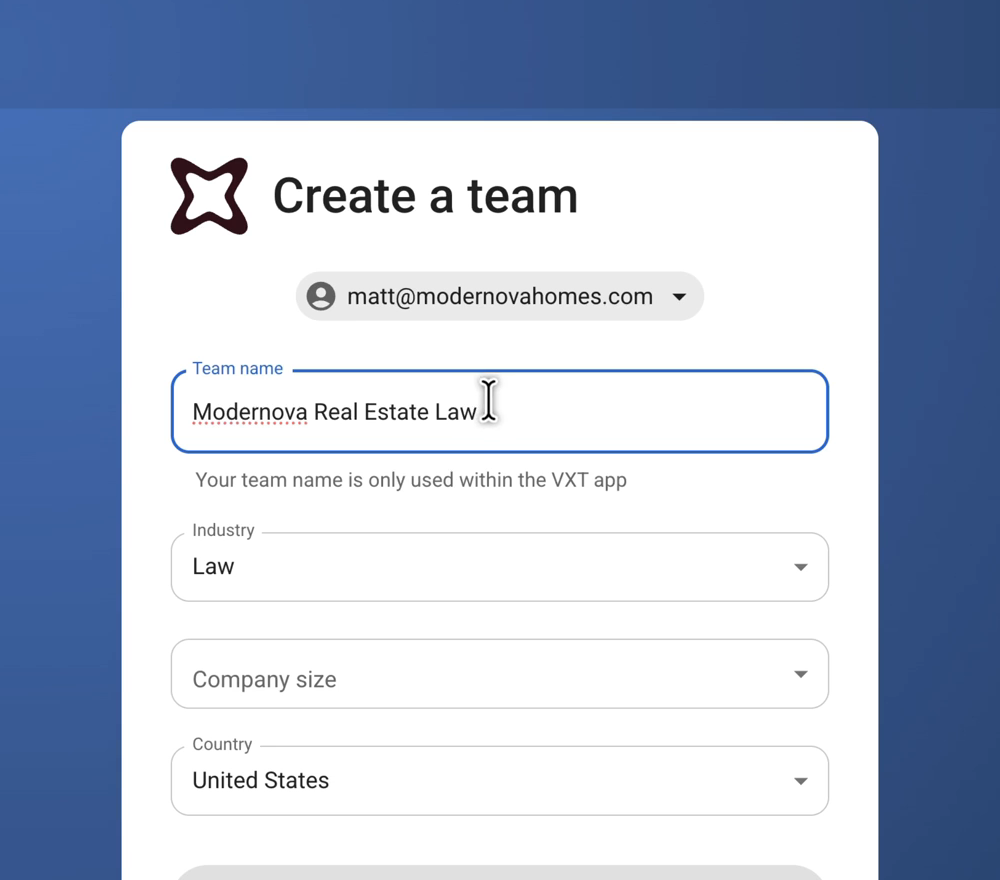
- Create your firm's team: enter the firm's name, industry and size, and click Continue.
- Tick the VXT product you're interested in, such as Meet, and click Continue.
- Click Yes, so anyone who signs up with your firm's email address joins your team automatically.
- Invite your colleagues by email, and tick Admin for anyone who should help you manage VXT. You can also skip this and invite them later.
- Your team is created. Click Continue, pick your main practice area, and click Continue again.
- Connect your practice management software: pick yours, sign in, and click Allow, so your notes save to the right matter. No software? Click Set up later.
1. Start recording
- Click Meet on the left.
- Click Start now. VXT shrinks into a small meeting box beside your call, and starts recording.
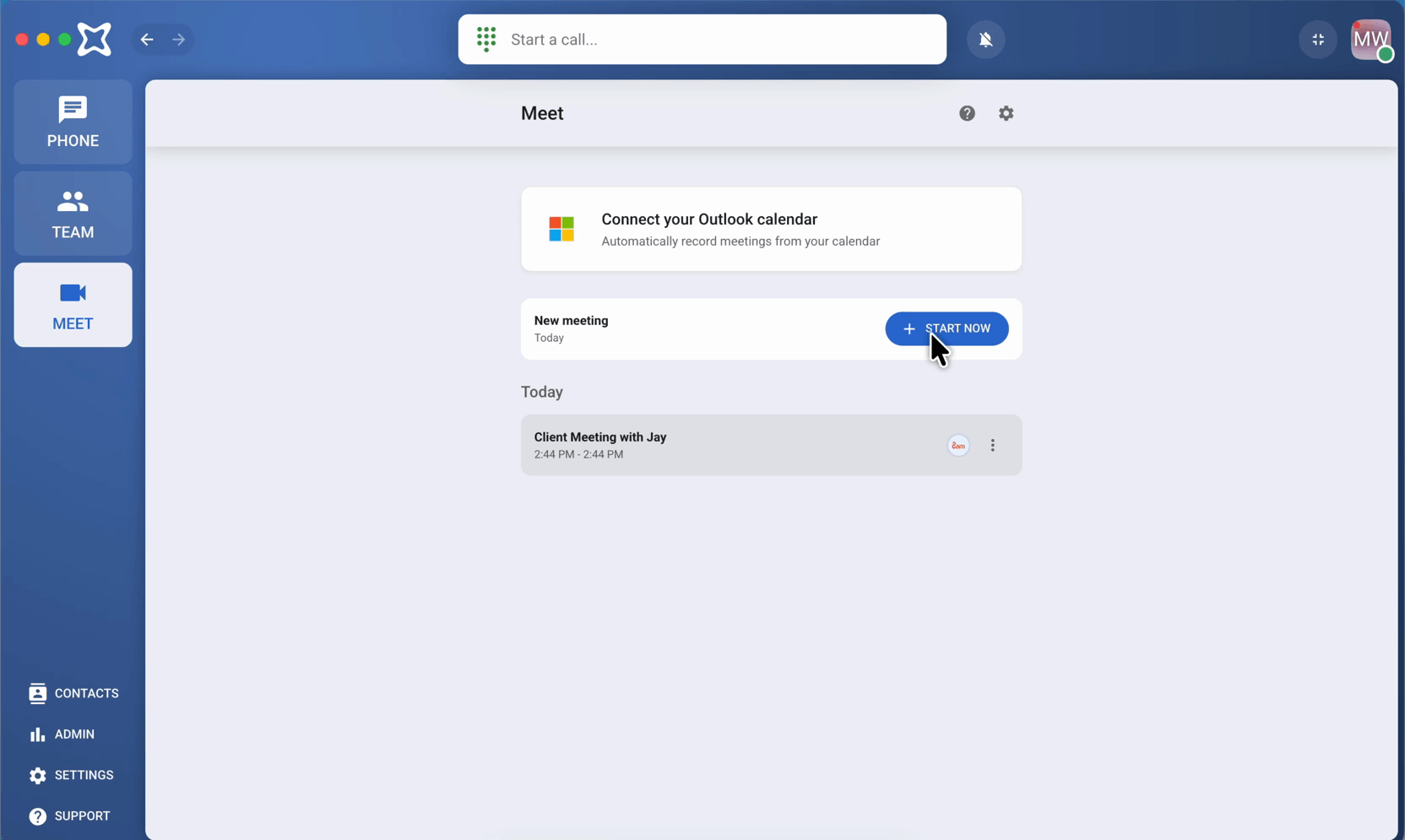
The meeting box works like a VXT phone call. It stays on top while you're in Google Meet, Teams, Zoom, or in the room with your client.
2. Take notes during the meeting
- Click the meeting name and give it a name you'll recognize later, like the client and topic.
- Type your notes in the Notes tab.
- Tag a colleague with @ and their name. When you save the meeting, they get a Team message with the whole meeting.

You can Pause the recording at any time, or Hide notes to shrink the box.
Meeting in person? Open the VXT app on your phone, tap Meet, then Start now. Set your phone on the table and take notes as you go. Tap Stop when you're done, and you get the same summary and transcript.
3. Stop the recording
Click Stop when the meeting ends. VXT analyses the recording, which takes a moment. Then the post-meeting screen opens with four tabs:
- Notes: your own notes. Tidy them up here.
- Summary: what was discussed, written for you.
- Email: a follow-up email to send to the people in the meeting.
- Transcript: the full transcript, and the recording to listen back to.
4. Save the meeting
Pick the matter, check the time entry, and click Save. If VXT is connected to your practice management software, your notes, the summary, a link to the transcript and recording, and the time entry are saved to the matter. Anyone you tagged gets the meeting in Team.
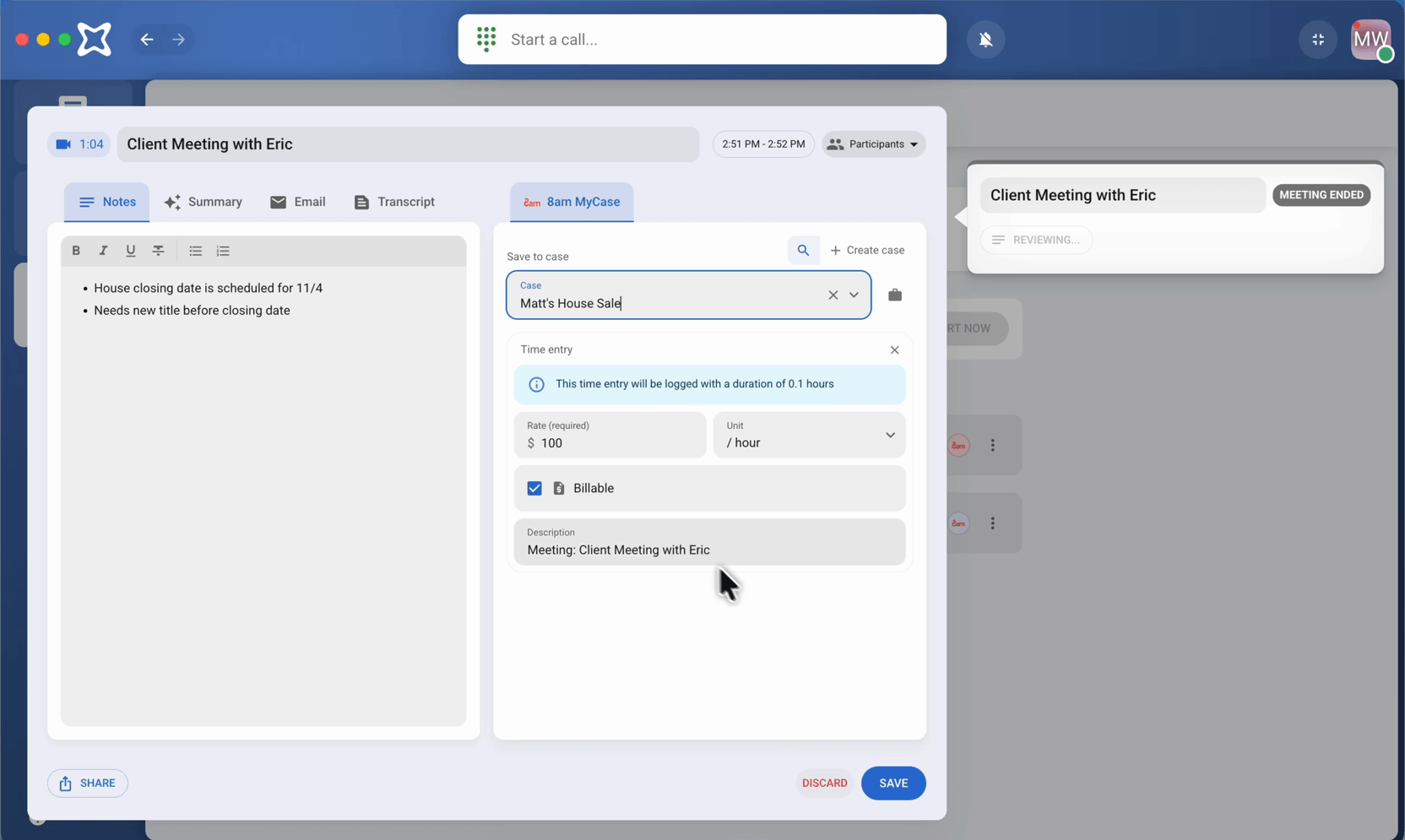
Don't want to keep it? Click Discard instead.
5. Find a past meeting
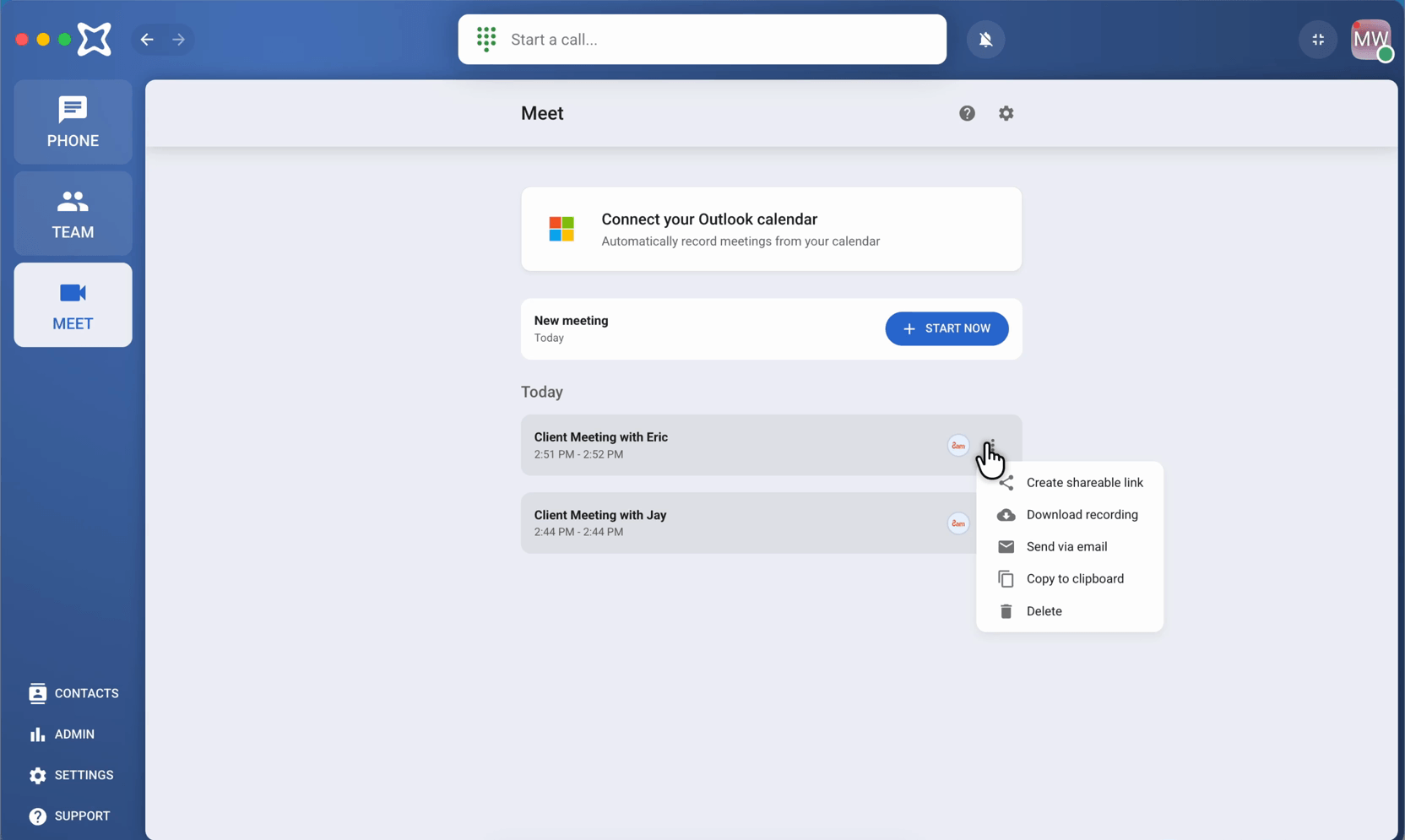
Click Meet on the left. Your meetings are listed by day, newest first. Click one to see its notes, summary and transcript again, and where it was saved. Use the ⋯ menu to share a link, download the recording or send it by email.
In your practice management software, the meeting note is on the matter with your notes and the full summary, and the time entry is ready to bill.
Tip: turn on meeting detection notifications (the gear in the Meet tab), and VXT reminds you to record when a meeting starts.