

We recommend following lessons on a desktop device to make these lessons easy to follow along!
Get set up on VXT
Your firm is moving its phones to VXT. This guide gets you set up in about 10 minutes.
By the end, VXT is on your computer and phone, you're in your firm's team, VXT is connected to your practice management software, and you've made your first call.
1. Install VXT on your computer
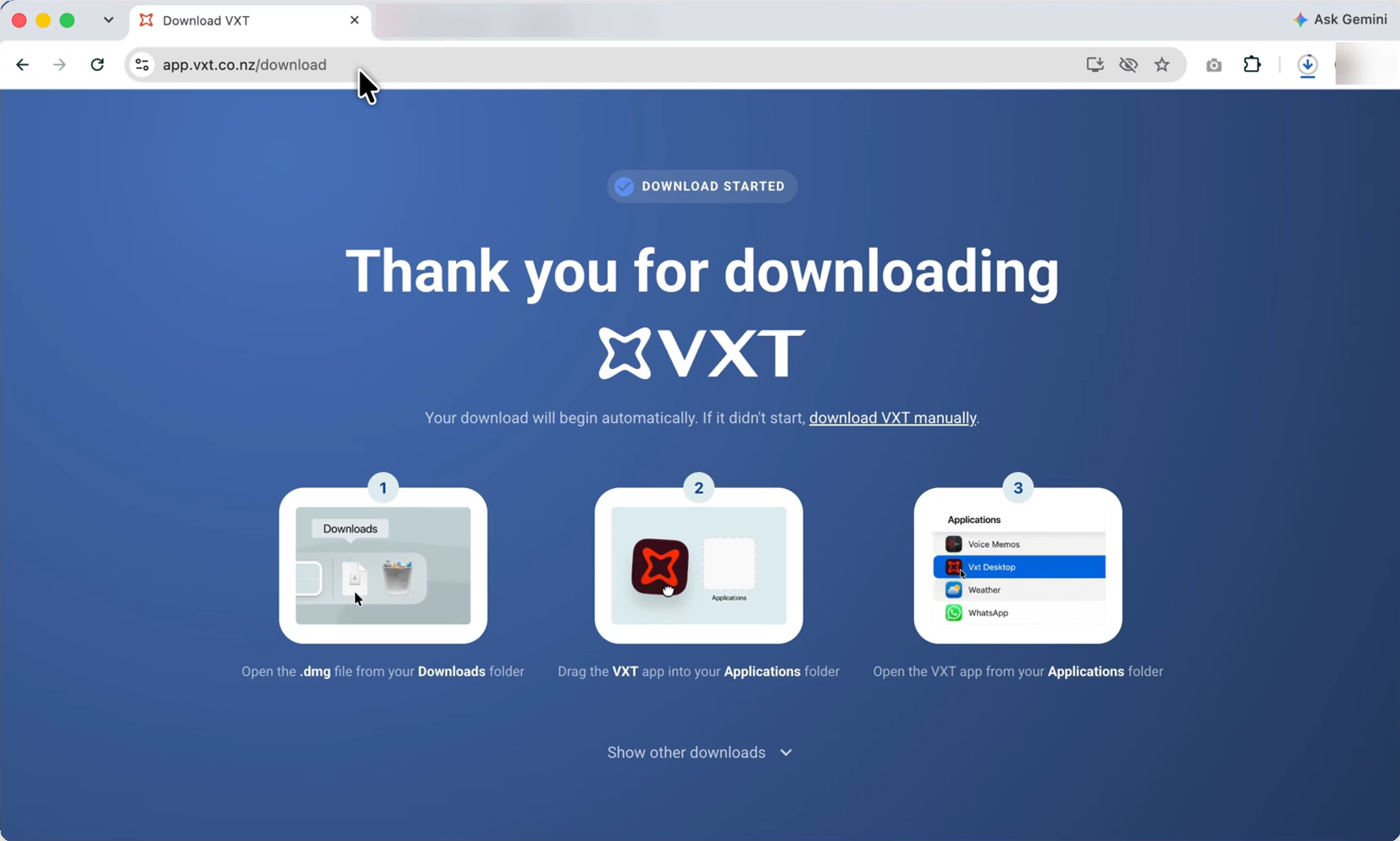
- Go to app.vxt.co.nz/download. The download starts on its own. If it doesn't, click Download.
- When the download completes, double-click it in your Downloads folder.
- Windows: VXT installs itself and opens.
- Mac: drag the VXT icon into your Applications folder. Then open your app drawer (Launchpad), search VXT, and open it.
2. Create your account
- Click Create Account and sign up with the email address your invite was sent to. You can use that email, or the Google, Microsoft or Apple account for it. Remember which one you used, because you'll sign in the same way on your phone.
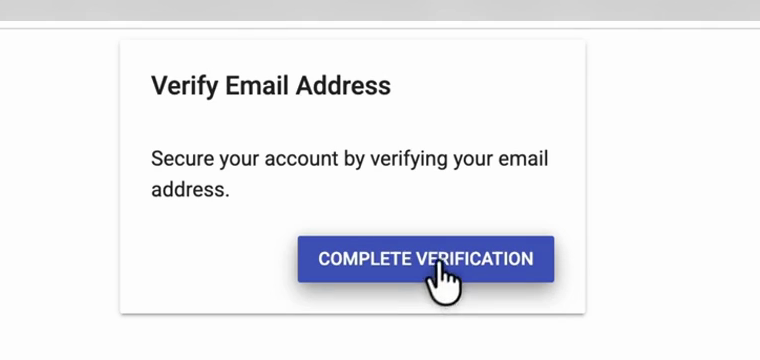
- VXT sends you a verification email. Open it, click Verify email, then click Complete Verification on the page that opens. That takes you back into VXT.
- Enter your name and country.
3. Join your firm's team
You'll join your firm's team automatically, because you signed up with the email your invite was sent to. Nothing to click. Signed up with a different email? Ask your admin to invite that one instead.
4. Connect your practice management software
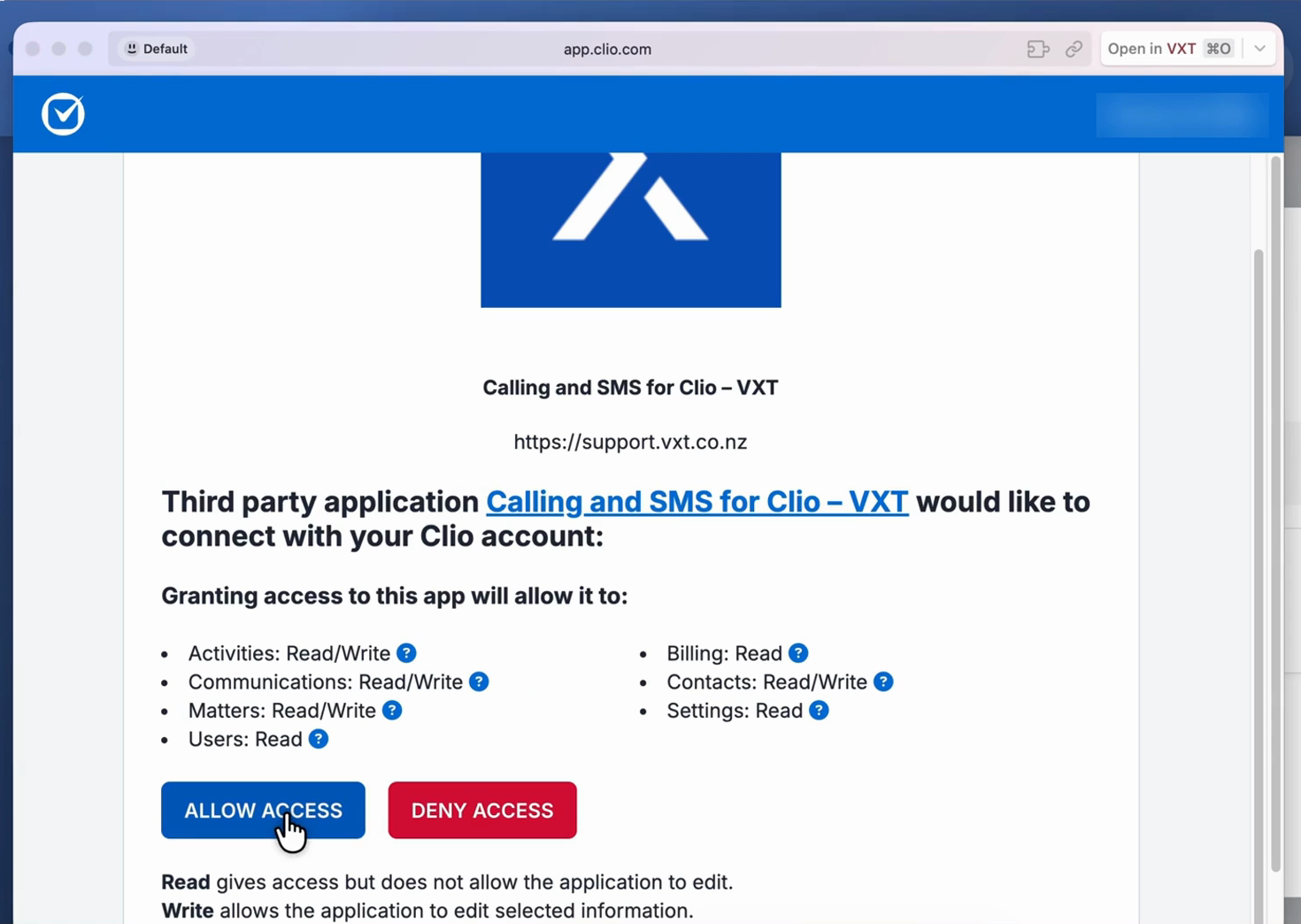
VXT asks you to connect it as soon as you're in. Pick yours, sign in, and click Allow when it asks for access. That way your call notes, transcripts and summaries save to the right matter. No practice management software? Click Set up later.
5. Make a call
- Click the dialing bar at the top of the screen (Start a call…).
- Pick a colleague or a contact, or type a number, and click to call.
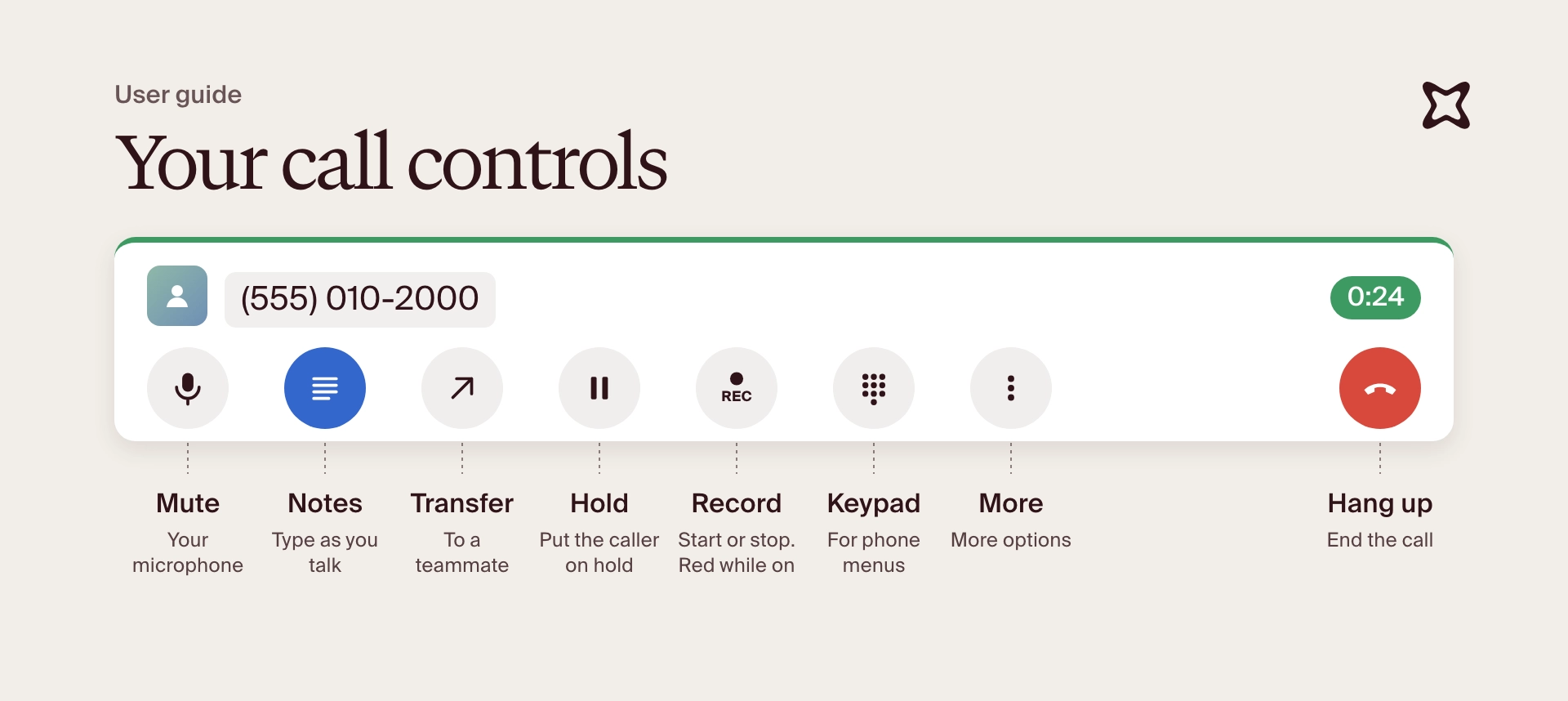
- While you're on the call, use the call menu: mute, notes, transfer, hold, record, keypad, and more (audio settings and conference calls). Tag a colleague in your notes with @.
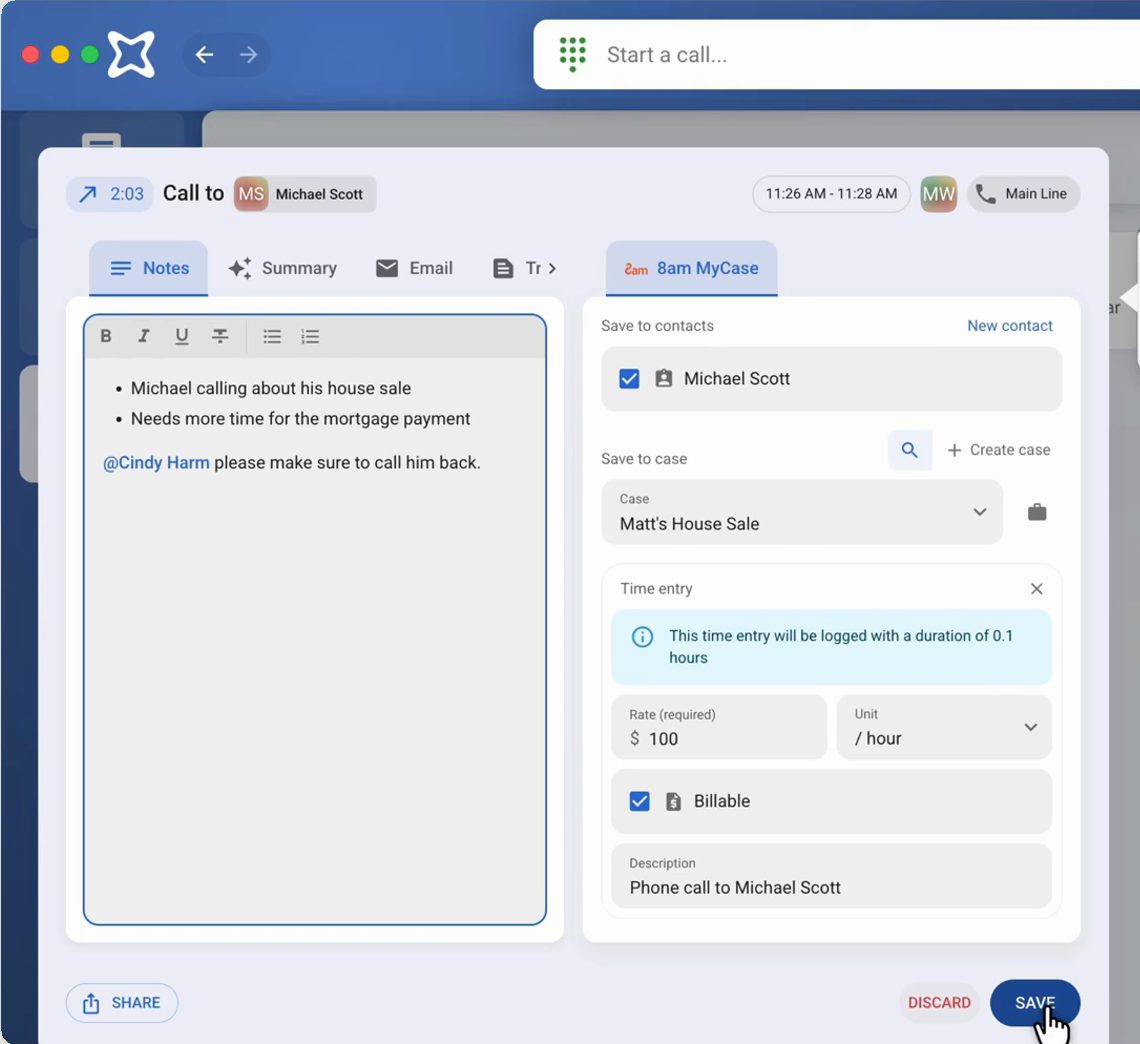
- Hang up. The post-call screen opens: tidy up your notes, and check the summary, the template email, the transcript and the recording.
- On the right, pick the matter to save the call to, and click Save. The notes, summary, a link to the transcript and recording, and the billable time are saved to the matter.
- The call now shows in the Phone tab on the left.
6. Team and Meet
- Team is for talking with your colleagues inside VXT: direct messages, calls between users, group chats and channels. Tag a colleague with @ in your call notes and they get a Team message with the full call, so they have everything they need to follow up.
- Meet records your video and in-person meetings, so you get a summary and transcript you can save to your practice management software. It works alongside the video platform you already use, like Google Meet, Teams or Zoom. You get the same note-taking and time keeping as on your phone calls.
7. Get VXT on your phone
- Open the App Store (iPhone) or Google Play (Android) and search for VXT.
- Install and open it.
- Sign in the same way you did on your computer.
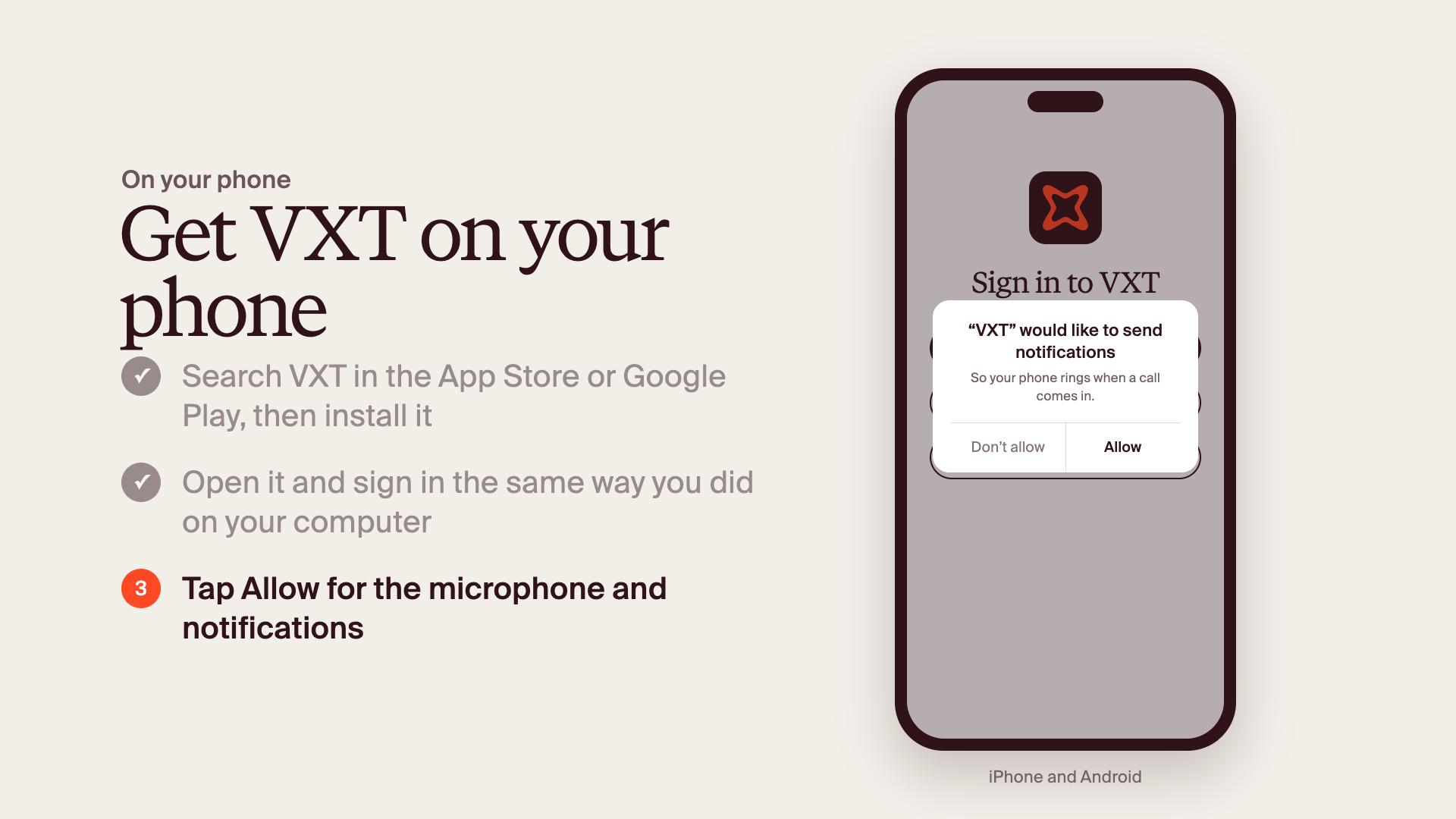
- Tap Allow for the microphone and notifications. VXT can't make or ring for calls without them.
Getting help
- Ask your admin. Many questions can be sorted on the spot.
- Use the Support button in the bottom left of VXT to search the help articles or chat with Aardvark AI, which can pass you to a person.
- Email us at [email protected]. Support is available 24 hours a day, 5 days a week.
You're done when you've made a call from VXT and can see the VXT home screen on your phone.