

We recommend following lessons on a desktop device to make these lessons easy to follow along!
Create your account and subscribe
You're on step 1 of 7.
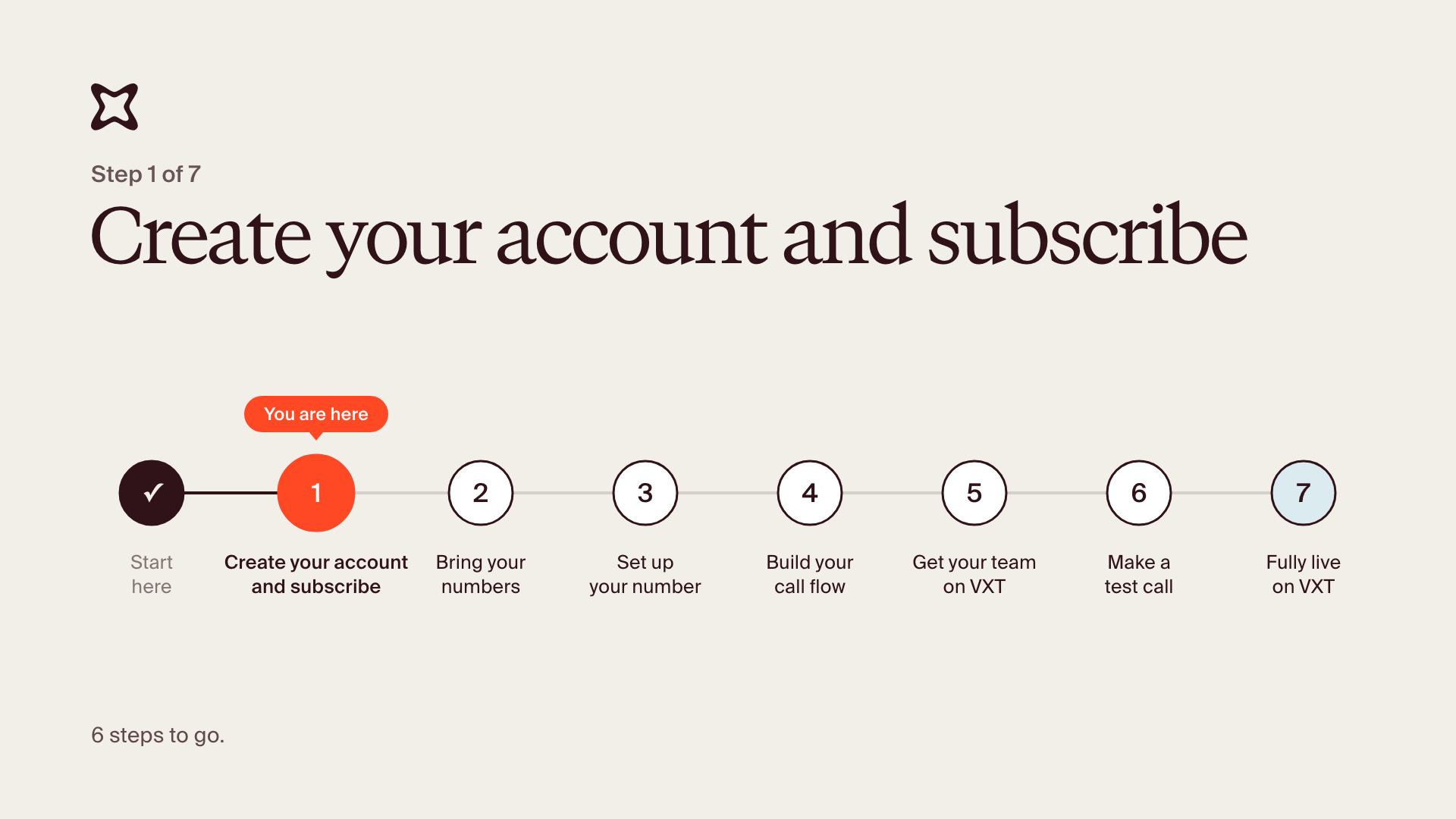
By the end, VXT is installed on your computer, your firm's account is set up and connected to your practice management software, and your VXT subscription is active.
If someone else will run the phones day to day (often the office manager), have them do this lesson instead of whoever signed.
Before you start, have these ready:
- Your company credit card
- Your billing address
- The email you'd like invoices sent to
On your computer
- Go to app.vxt.co.nz/download. The download starts on its own. If it doesn't, click Download.
- When the download completes, double-click it in your Downloads folder.
- Windows: VXT installs itself and opens.
- Mac: drag the VXT icon into your Applications folder. Then open your app drawer (Launchpad), search VXT, and open it.
- Click Create Account and sign up with your email, Google, Microsoft or Apple account. Remember which one you used, because you'll sign in the same way on your phone later (step 7).
- VXT sends you a verification email automatically. Open it, click Verify email, then click Complete Verification on the page that opens. That takes you back into VXT.
- Enter your name and country.
- Create your team: enter your firm's name, industry and company size.
- Pick the VXT products you're interested in. This doesn't limit what you can use; it just helps us tailor your experience.
- Choose whether people with your company email domain can join your team automatically. Most firms choose Yes.
- Invite your whole team: enter each person's email. Tick Admin only for people who'll manage VXT; everyone else makes and takes calls. Do it now: you'll pick these people when you set up your numbers and call flow (steps 3 and 4). Forgot someone? You can invite them any time from Admin → Users. Each person you invite adds a seat to your subscription; the 1FREE promo code still gives you your first month free, whenever you add them.
- On the Welcome to VXT screen, click Continue and select your practice area.
- VXT asks you to connect your practice management software. Pick yours, sign in, and click Allow when it asks for access. No practice management software? Click Set up later.
- The Add phone numbers pop-up asks what you'd like to set up. Most firms click Bring existing numbers. Getting a brand-new number instead? Click New phone number; step 2 shows you how.
Start your subscription
The checkout opens next.
- On the left, enter your card details, billing email and billing address.
- On the right, choose Monthly or Annual (pick the one on your proposal).
- Enter the promo code 1FREE and click Apply. It gives you your first month free. You'll see a green box once it's applied.
- Click Start subscription. You'll see Thank you for your purchase.
"Start subscription" grayed out? Something's missing. Check these three are all filled in:
- Card details
- Billing address
- Billing email
Connected your Integration? A Syncing contacts banner appears while VXT copies your contacts across for the first time. VXT may be a little slower until it finishes, but it only happens once.
You're done when you see Thank you for your purchase.
No verification email? Check your spam folder, or click to send it again.
Stuck? Reply to your welcome email and your implementation manager will help. If something in VXT isn't working, use the Support button or email [email protected].