

We recommend following lessons on a desktop device to make these lessons easy to follow along!
Get your team on VXT
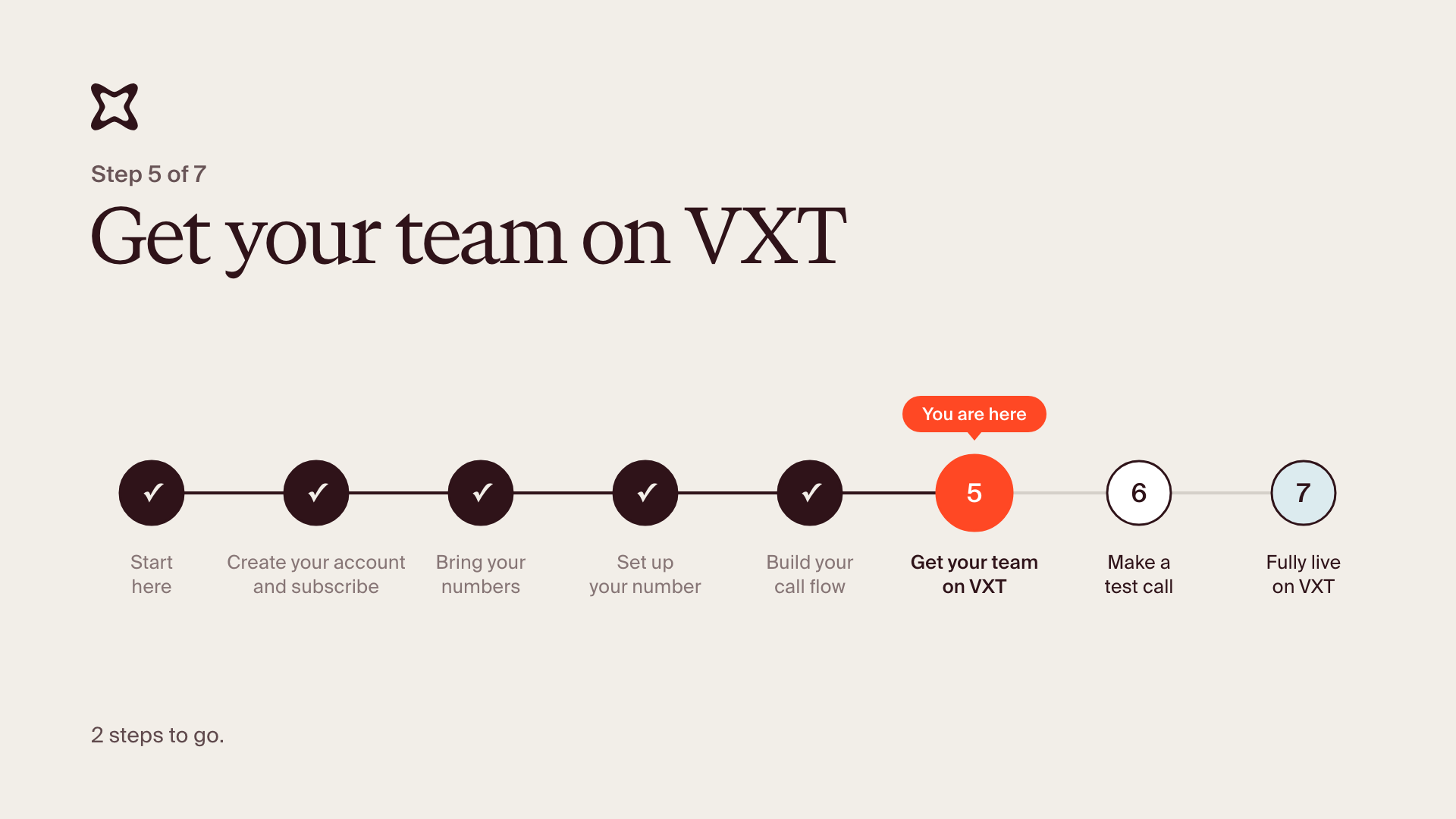
You're on step 5 of 7.
You invited your team when you created your account (step 1). This step makes sure everyone's in and knows where to learn VXT.
By the end, everyone has accepted their invite and has the short user guide.
1. Check everyone's invited
- Click Admin in the bottom left, then Users.
- Missing someone? Click Invite people, enter their email address and choose their role:
- User: makes and takes calls.
- Admin: has access to the whole firm's account. Can add and delete numbers, view analytics and recordings, build call flows, and manage users.
- Added someone new? Add them to the right numbers (step 3) and call flows (step 4) too. If your call flows ring a group, just add them to the group.
2. Optional: put people in groups
A group is a set of users, like your reception team. Ring a group in your call flows instead of naming people one by one. When someone joins or leaves, update the group, and every call flow that rings it keeps up on its own.
- Click Admin, then Users, then Groups.
- Click Add group, give it a name like "Reception", add its members, and click Save.
- In a call flow, you can open the Ring users step and pick the group if needed.
3. Send your team this message
We're moving our phones to VXT. It takes about 10 minutes to get set up:
1. Download VXT from app.vxt.co.nz/download and install it.
2. Open VXT, click Create Account and sign up with the email address this invite was sent to. You'll join our team automatically.
3. Follow this short guide: [user guide link]
The guide covers connecting VXT to [our practice management software], getting VXT on your phone, and making your first call. Let me know if you get stuck.
You're done when everyone has accepted their invite. Pending invites wait in the Invitations tab; once someone accepts, they move to the Users tab.
Changing someone's role later
- Go to Users and click the person.
- Change their Role, or switch individual permissions on or off.
- Click Save.
Stuck? Reply to your welcome email and your implementation manager will help. If something in VXT isn't working, use the Support button or email [email protected].